
After a meeting you need to capture an assignment, but opening a form and filling in fields feels like a chore. A voice message keeps the agreement while the details are fresh. If it stays a mere recording, you have to listen again later and work out who promised what. In iTasker, a short voice message turns into a task right away.
A voice note and a task
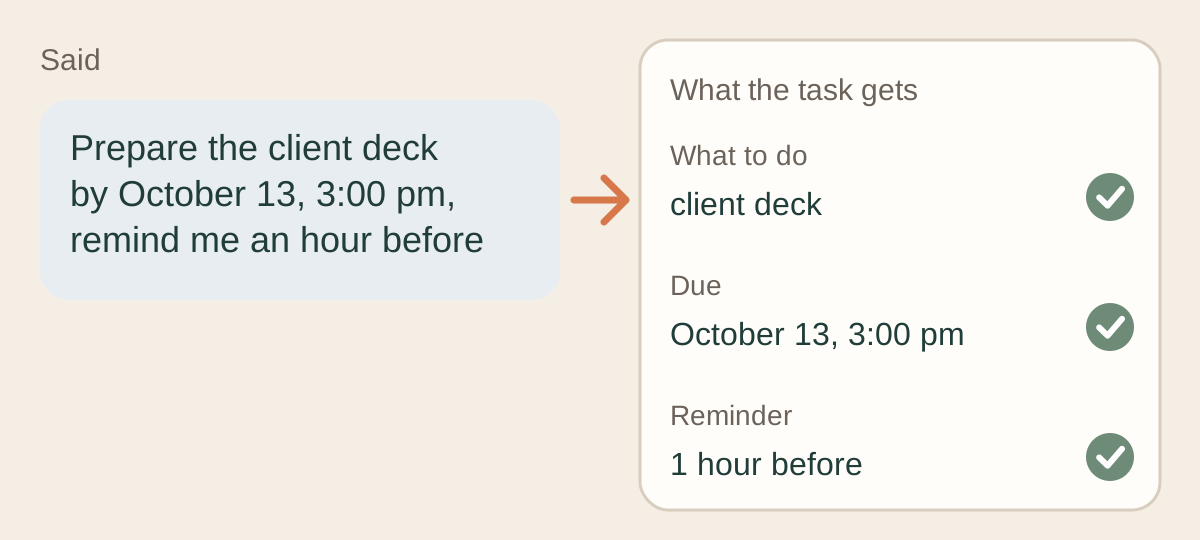
A note keeps speech. A task needs more: an action, an expected result and, when it matters, a deadline, an owner and a reminder. Compare "Do something about the presentation" with "Prepare the client presentation by October 13, 3 pm, remind me an hour before". The second works for both a person and the AI parser that sorts what you said into fields.
Create a voice task in a private chat

- Open your private chat with the iTasker bot.
- Record a voice message up to 30 seconds: the action, the deadline and, if needed, a reminder.
- Wait until the bot processes the recording and creates the task.
- Open the task and check the title, date, time and reminder. Fix by hand whatever was recognized differently.
A voice task needs working AI parsing and free quota on your plan. The bot rejects a recording longer than 30 seconds and tells you about the limit, so for a complex project record a short assignment and add the details to the description as text.
Turn a voice message into a team task
In a linked group, voice messages don't become tasks on their own. Reply to the voice message with /new and no additional text, and the bot takes the voice from the original message. If you add your own text to the command, the voice is ignored and only the text is used.
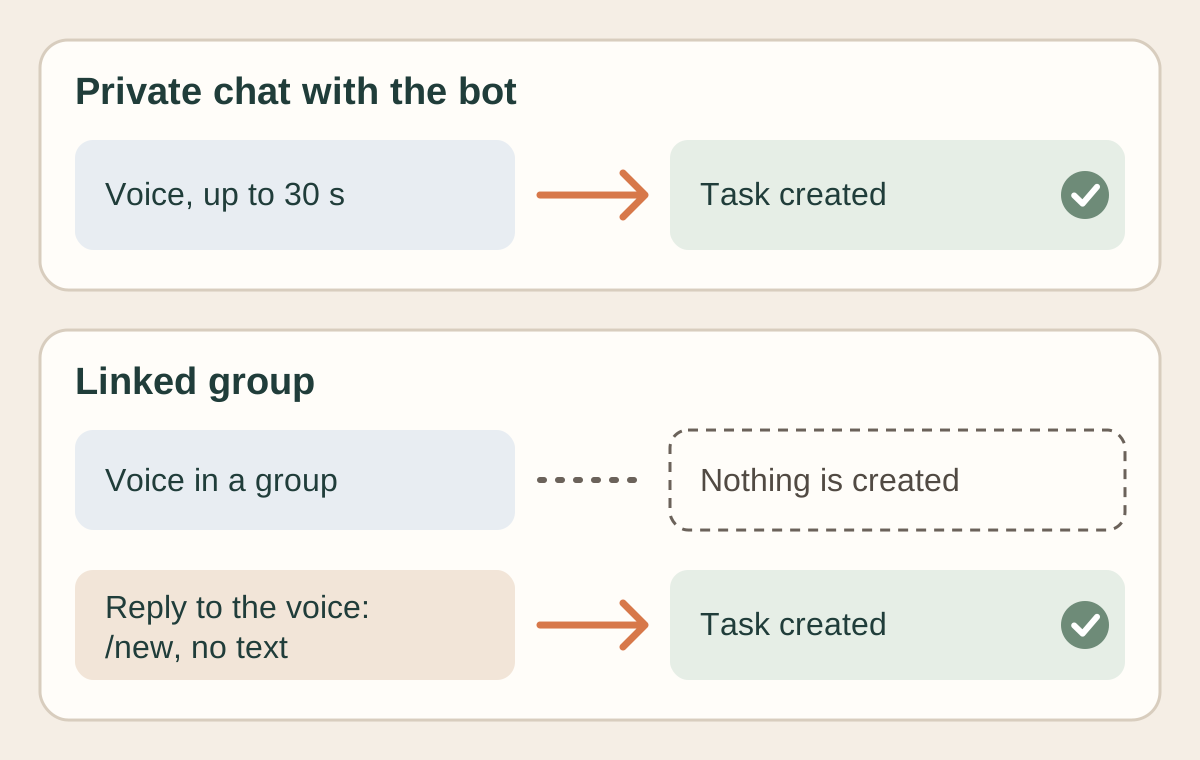
The same works for an ordinary text message: reply to it with /new. After the task is created, check the assignee and the deadline.
What to say in the recording
Start with the action, then give the deadline. Say the reminder as a separate phrase, and for regular work add the recurrence.
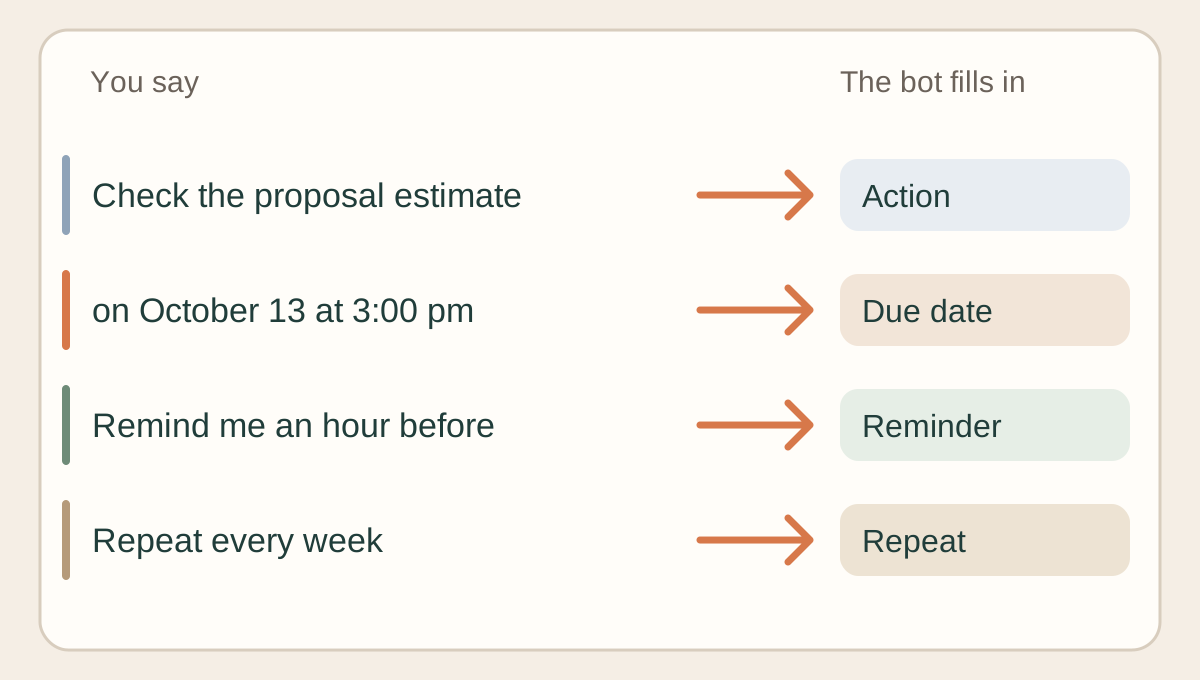
Check the client proposal calculations on October 13, 2026 at 3 pm. Remind me an hour before.
Send the weekly report on October 16, 2026 at 4 pm. Repeat every week. Remind me two hours before.
"Tomorrow" and "Friday" depend on the current date and the workspace time zone, so give an exact date and time for anything important. If the recording says "Friday, or maybe Monday if they send it in time", settle the final agreement first, otherwise the card will hold one of the two dates.
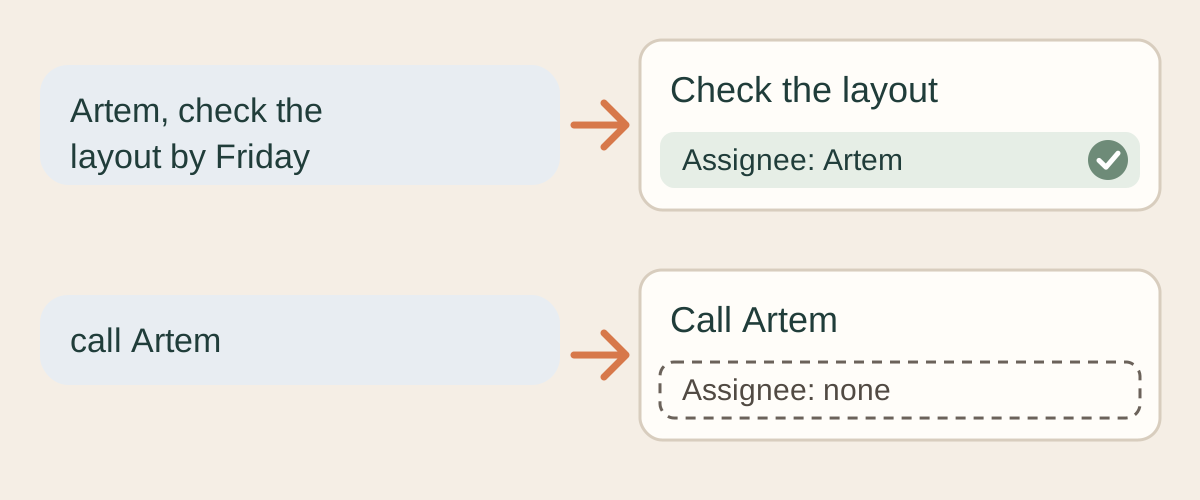
In a group you can name the assignee right away: "Artem, check the mockup by Friday" will usually assign the task to Artem if he is a project member. "Call Artem" doesn't assign anyone: Artem is part of the action, and the name stays in the title. If two members fit the name equally, the AI doesn't pick one for you.
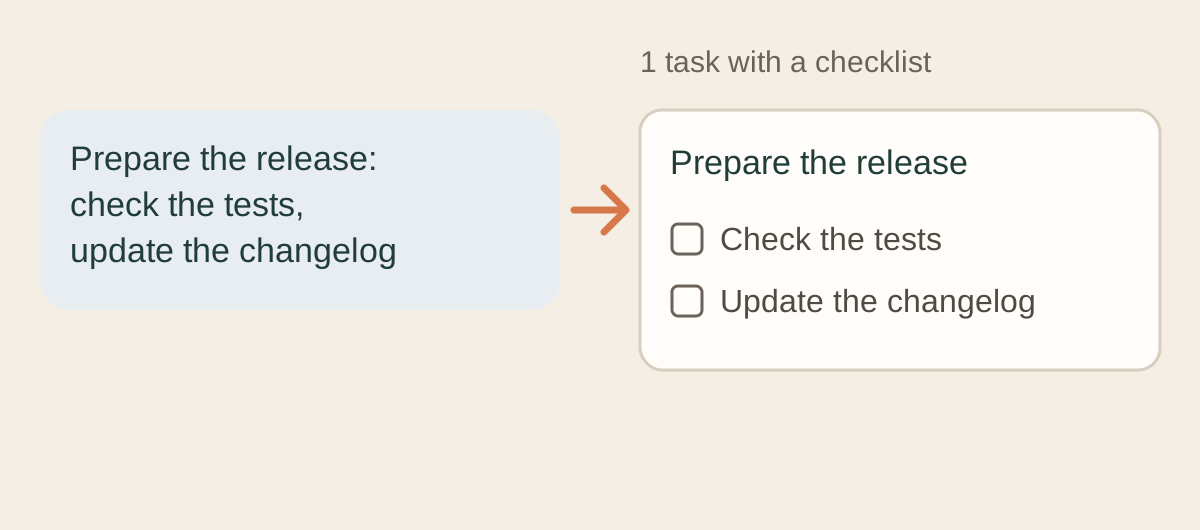
One voice message can become several tasks if it holds independent items: "buy milk, call the doctor, book the tire change" gives three tasks, up to five at most. "Buy bread and milk" stays one task, and the steps of a single result ("prepare the release: run the tests, update the changelog") become a checklist inside it. The AI makes that call, so check these cases by eye.
What to check on the card
Voice is first turned into text and then parsed like an ordinary message. Mistakes usually show up in these fields:
| Field | What can go wrong |
|---|---|
| Title | an unusual name or term is recognized by sound |
| Date | "Friday" is understood relative to another day or time zone |
| Reminder | the deadline is set but the reminder isn't |
| Recurrence | the frequency differs from what you said |
| Assignee | the wrong member is picked, or nobody is |
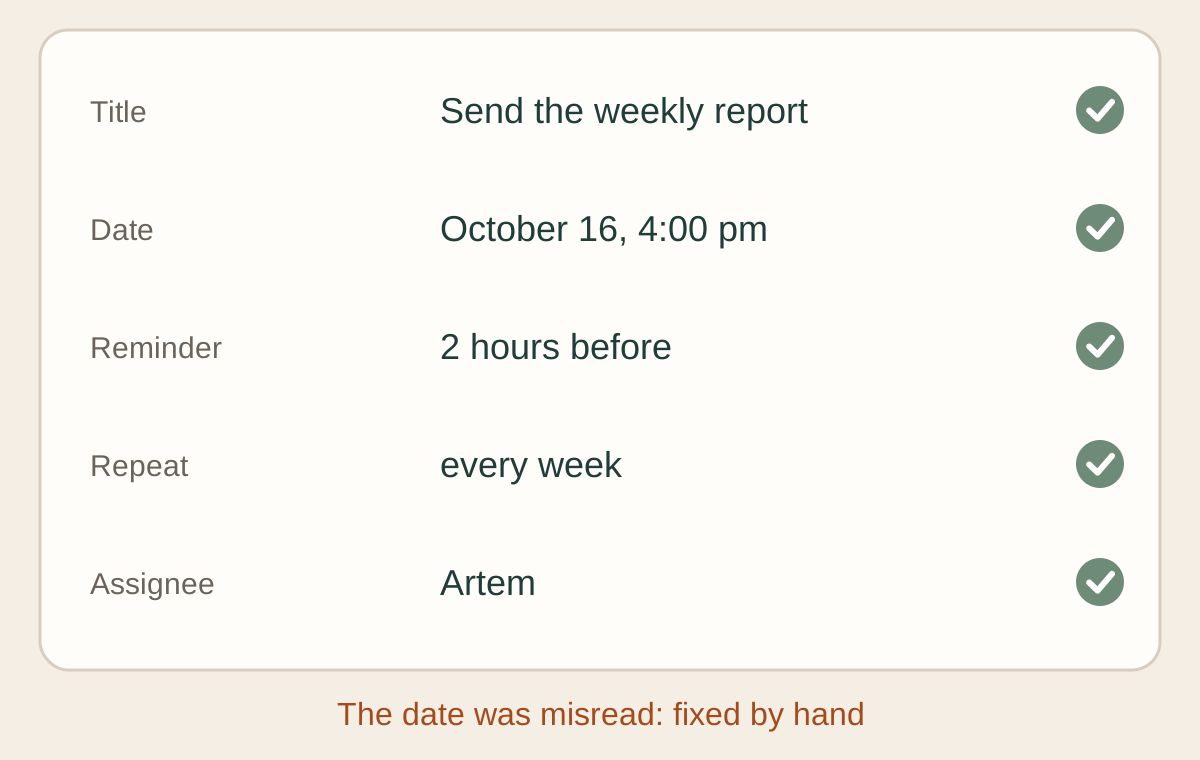
Set the workspace time zone before your first voice task.
If the voice message wasn't processed
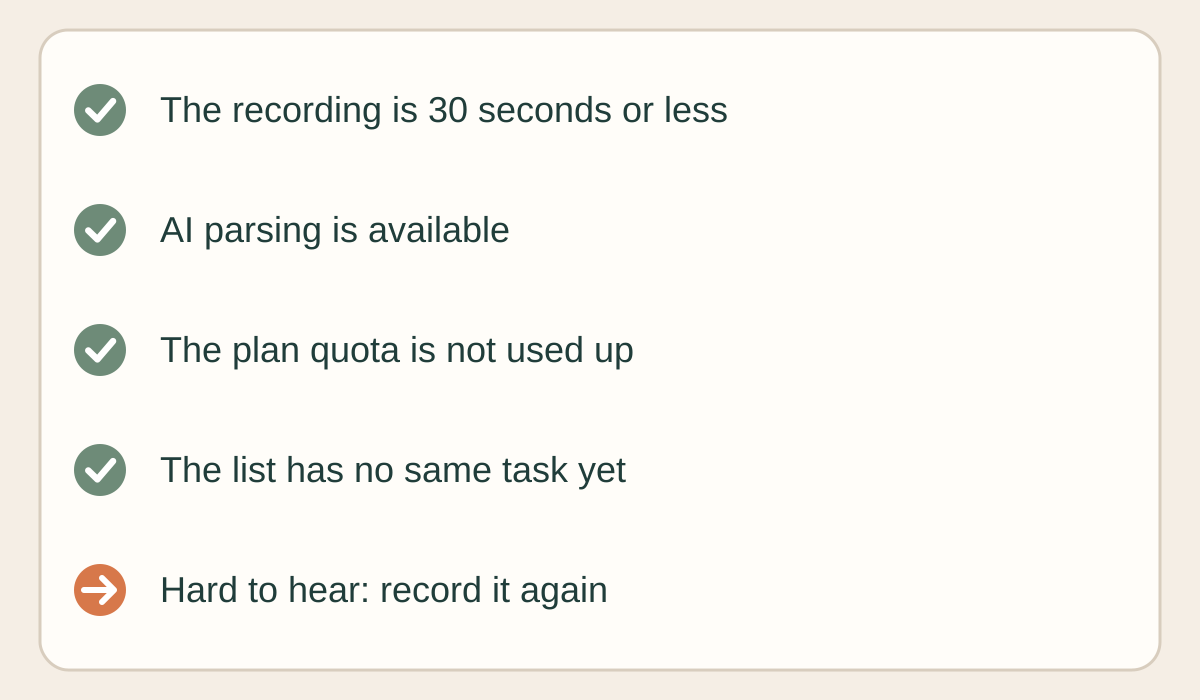
Check the recording length, AI availability and your quota. If the speech is hard to hear, record it again or send the task as text. A text task can be created without parsing when AI is unavailable, and you fill in the fields by hand, while a voice message doesn't work without successful recognition. Before resending, look at your task list: the first recording may have already created a task, and a duplicate will clutter the list.
When voice beats text
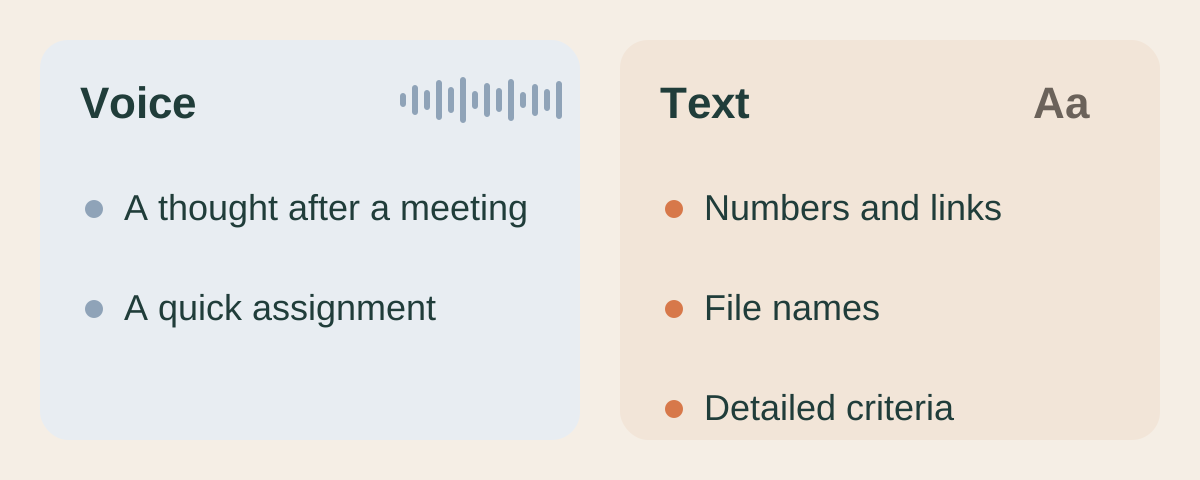
Voice suits a quick thought after a meeting and an assignment you want to capture immediately. Text is better when you need numbers, links, file names and detailed criteria; see our task assignment template for how to write them. You can add materials to the card right after it is created.