Recurring tasks and reminders: setting up regular work
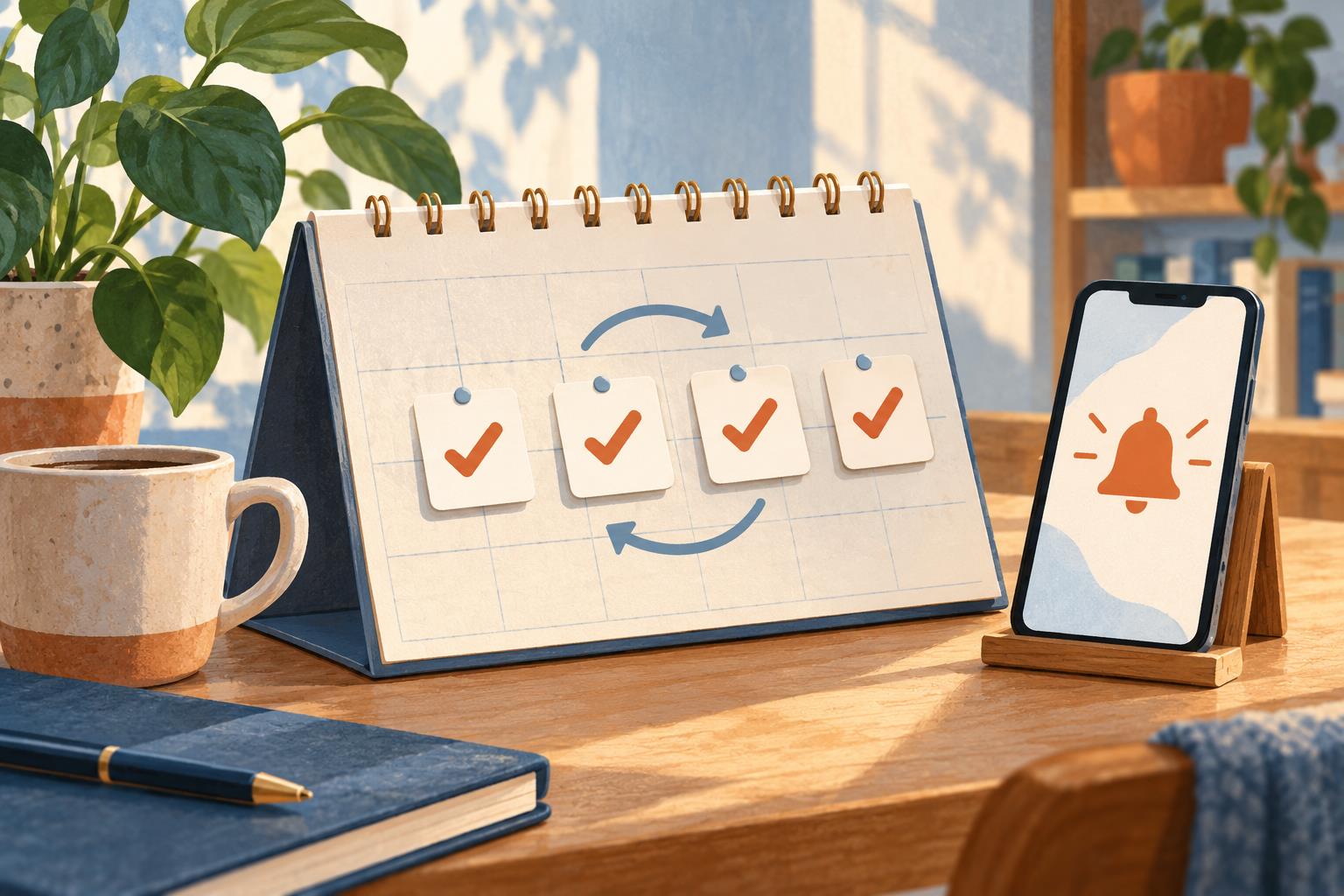
A report goes out every Friday, payments need a monthly check and stock levels need updating on Tuesdays. Familiar work is forgotten precisely because it's familiar: you assume you'll remember it anyway.
A recurring task returns to the list on its own, and a reminder draws attention at the right moment. For reliability you usually need both, but they are set up separately.
In short
The date sets the deadline, recurrence sets the next cycle, and a reminder sets the moment of the notification. These are three separate settings. Recurrence also has a mode: count from the task's date or from the moment it is completed.
Date, recurrence and reminder
A report is due on Friday at 16:00 and repeats every week, and the reminder works best at 14:00, which leaves time to prepare. A reminder at exactly 16:00 would only announce that the deadline has arrived.
| Setting | Question | Example |
|---|---|---|
| Date and time | When is the result needed? | Friday, 16:00 |
| Recurrence | When does the work return? | Every week |
| Reminder | When should it get attention? | Two hours beforehand |
Don't expect a due date to switch on a notification by itself: in iTasker the reminder has to be chosen too, and it needs a specific time. Another app may behave differently, so test it on a throwaway task.
Which work should recur
Choose work that genuinely returns and describe a result you can verify.
| Task | Recurrence | What counts as completion |
|---|---|---|
| Send the weekly report | Every Friday | The file is sent to the agreed channel |
| Check unpaid invoices | Weekly | The list is updated and overdue items have follow-up actions |
| Update stock levels | Weekly | Data is checked and published |
| Process incoming tasks | On working days | Each item has a next action or a decision to drop it |
| Review the project queue | Weekly | Outdated work is removed and priorities clarified |
A long project doesn't become recurring. "Launch the new website" is not a daily task, but checking its current blockers could be regular work.
Two recurrence modes in iTasker
In the recurrence settings you choose what the next date is counted from. The modes are called "From the due date" and "After completion".
"From the due date" suits work tied to the calendar. A weekly report dated October 9 continues on October 16 and 23 and so on, whether or not you closed the previous occurrence. The next card appears when the day of the current one arrives, so there is always exactly one ahead rather than the whole series at once. If you close the task earlier and the next one doesn't exist yet, it appears right after you close it.
"After completion" suits work that has to be repeated a set time after the previous time: changing a filter, checking a backup. A weekly check completed on October 12 returns on October 19. Until the task is completed, the next date can't be known, so the new card appears only after completion.
A new card doesn't mean the old work was done, so review overdue occurrences separately.
To set it up:
- Open the task in the Web app or Mini App and set the date of the first occurrence.
- In the date settings choose the recurrence frequency and the mode.
- Add a time if you need a timed deadline or a notification.
- Choose the reminder separately and check the time zone.
You can also start with a text message to the bot: /new Send the weekly report on October 9 at 16:00, repeat every week, remind me two hours before. The AI sets "After completion" only when the text ties the repeat to finishing the task ("two weeks after completion"), so phrases like "every Monday" stay in "From the due date". Check the recognized fields after the task is created.
Why a reminder might not arrive
Check in order. The task needs a date, a specific time and a chosen reminder, and the time zone of the personal workspace or project must match yours.
Then delivery. The bot must be started in a private chat and not blocked. For team tasks, the linked chat and the project's notification settings must be in place. The number of active reminders depends on the workspace's plan.
Distinguish "the bot didn't send it" from "the message arrived but the phone stayed silent". In the second case, look at Telegram notifications, the muted state of the chat and the device's modes.
If you changed a task's time, check that the new reminder is still in the future. A reminder an hour before a 12:00 deadline won't arrive at 11:00 if you set it up at 11:30.
Keeping recurrence from becoming noise
Add a reminder where starting on time or not missing an event matters. A notification that comes too early is easy to dismiss and forget, and one that comes too late leaves no time for the work.
Once a week, review the regular work: is it still needed, is the frequency right, does it have an owner and how long does it take? If nobody reacts to a task any more, another alert won't help; the process itself needs to change.
For team routines, record one result and an owner. If the work passes to someone else, discuss the materials and review rules as in the article on delegation.










'/%3e%3cg%20transform='translate(7.5%209.35)%20scale(0.0644)'%20fill='white'%3e%3cpath%20d='M296.63%2067.21C317.501%2046.2949%20351.375%2046.2591%20372.29%2067.1299C393.205%2088.0008%20393.241%20121.875%20372.37%20142.79L200.735%20314.79C190.699%20324.848%20177.074%20330.5%20162.865%20330.5C148.656%20330.5%20135.03%20324.848%20124.994%20314.79L15.6297%20205.192C-5.24109%20184.277%20-5.20533%20150.403%2015.7098%20129.532C36.625%20108.662%2070.4991%20108.697%2091.37%20129.612L162.864%20201.259L296.63%2067.21Z'/%3e%3cpath%20d='M221.5%2059.5C221.5%2092.3609%20194.861%20119%20162%20119C129.139%20119%20102.5%2092.3609%20102.5%2059.5C102.5%2026.6391%20129.139%200%20162%200C194.861%200%20221.5%2026.6391%20221.5%2059.5Z'/%3e%3c/g%3e%3cdefs%3e%3clinearGradient%20id='paint0_linear_logo_mark'%20x1='20'%20y1='0'%20x2='20'%20y2='40'%20gradientUnits='userSpaceOnUse'%3e%3cstop%20stop-color='%2379C9FF'/%3e%3cstop%20offset='1'%20stop-color='%23007AFF'/%3e%3c/linearGradient%3e%3c/defs%3e%3c/svg%3e)